Communication·Clips

Screen recording for updates nobody needs to attend

Record your screen, camera and audio, annotate a screenshot, and share the clip in the project instead of scheduling another call.

Free forever plan. No credit card.

In this feature

Screen recording
01
Camera overlay
02
Voice clips
03
Screenshot editor
04
Shortcuts
05

On this page

Plate 00 · ClipsRecording a board walkthrough with the camera at 23%, a background picked from twelve options, and a live recorder panel on the right.
Recording a screen clip in MoodLens with a camera overlay, camera size slider and background effects
01

Show it instead of writing it

Record the screen with an optional camera overlay when a walkthrough is faster than a paragraph. Size the camera with a slider, choose a background, decide whether the mic is included — and the clip lands in the workspace rather than in a file you have to upload somewhere else.

Detail

  • Screen, camera and audio capture
  • Camera size slider, not a fixed corner
  • Twelve backgrounds plus blur and none
  • Include or exclude the microphone
  • Live status, mode and elapsed time
  • Rebindable shortcut, e.g. Alt + Shift + R
02

Sometimes the answer is thirty seconds of voice

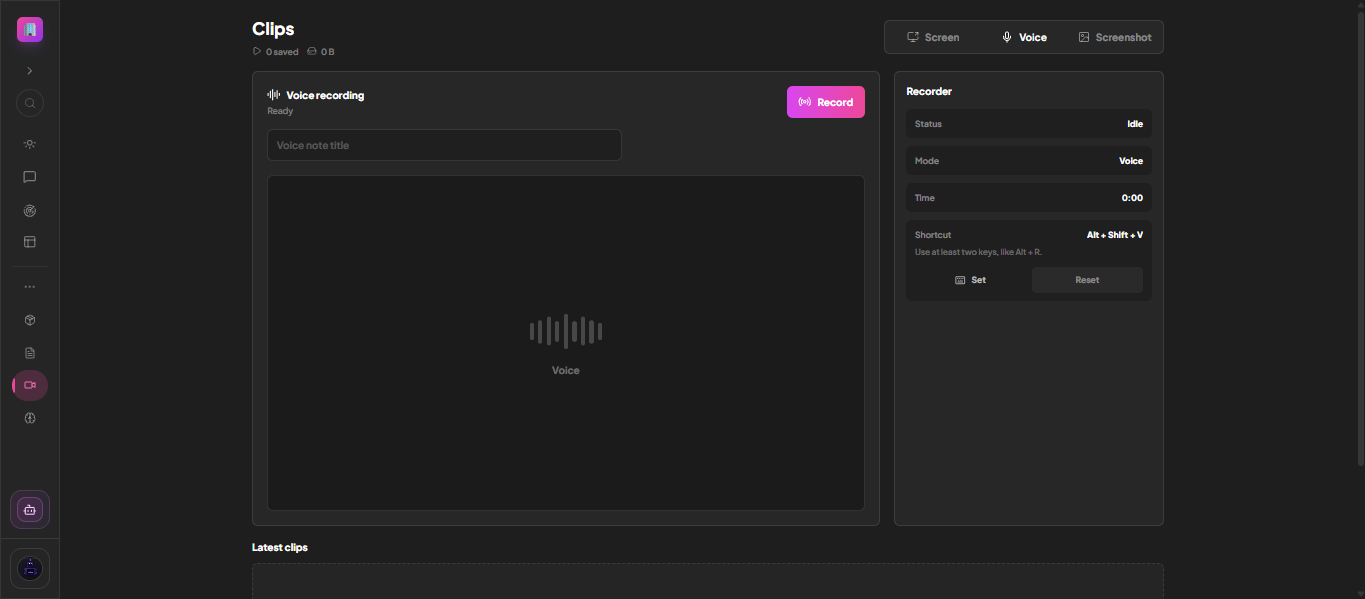
A voice clip has its own mode, its own shortcut and its own title field. No camera, no screen, no meeting invite — just the spoken answer, saved to the same clip library as everything else.

See it below
Plate 01 · Continues 02Voice mode: a title, a waveform and a shortcut. Nothing else to configure.
Recording a voice clip in MoodLens with the recorder panel showing idle status

What to look for

  • Voice-only recording mode
  • Titled voice notes
  • Separate shortcut, e.g. Alt + Shift + V
  • Saved alongside screen clips
03

Annotate the screenshot

Crop, draw and mark up a capture before sending it, so feedback points at the exact thing you mean instead of describing where to look.

See it below
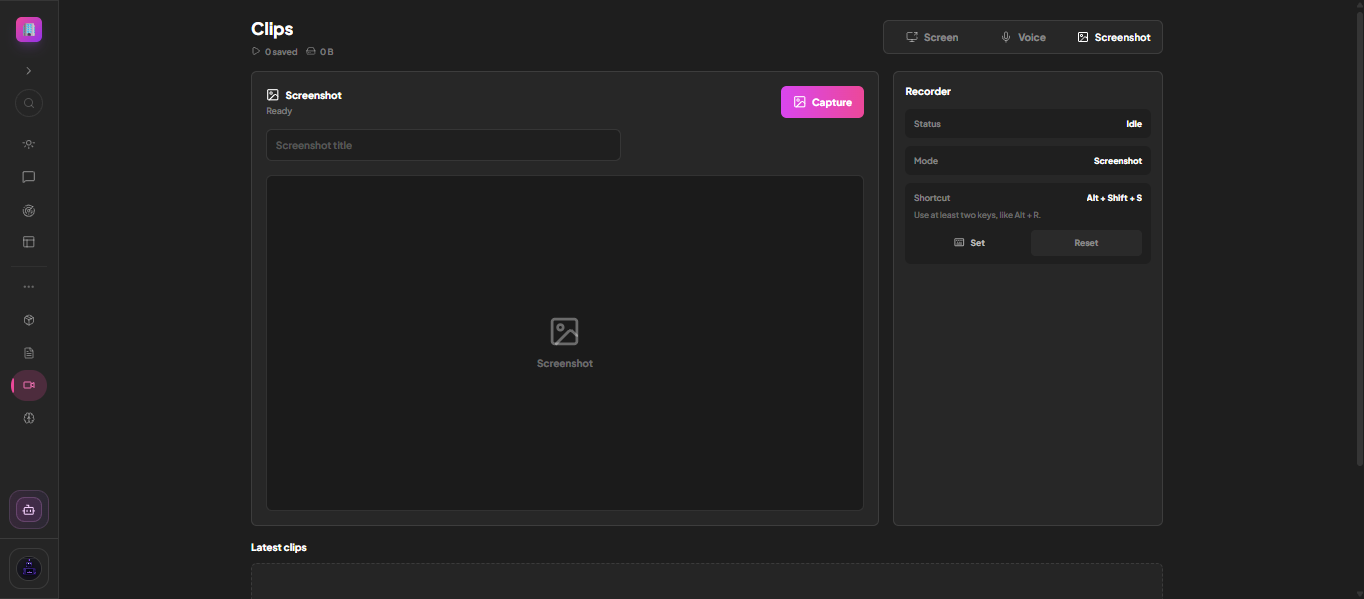
Plate 02 · Continues 03Capture, crop and mark up before it reaches anyone.
Taking and annotating a screenshot in MoodLens

What to look for

  • Built-in screenshot editor
  • Crop and draw tools
  • Share straight into a channel or task
04

Ask questions about your own recordings

MoodLens can discuss the content of a clip with you, which makes a library of recordings searchable rather than an archive nobody revisits.

Detail

  • AI chat about clip content
  • Clip library in the workspace

Also asked

Clips, answered

Q1
Do I need the desktop app to record?The desktop app adds global keyboard shortcuts and fuller screen capture, but recording works in the browser too.

Run the whole client lifecycle in one workspace.

Clips is one part of it. Plan the work, keep clients informed, track the budget and get paid — without another subscription.

Start free

Free to start. No credit card required.