A timesheet is more convincing when every hour has a task and a project behind it. MoodLens lets the team run a task timer or add time manually, see that work against the project budget and prepare an invoice from the billable record.
The short answer
Start and stop the timer on the task you are doing, or add a manual entry when needed. Review whether each entry is billable and check the board’s member rates and budget. When billing, use the project’s tracked work to prepare an invoice, review its line items and client details, then send it through the invoice workflow.
From task work to a reviewed invoice
- 1Choose the task
- 2Run a timer or add time
- 3Check billable entries
- 4Review rates and budget
- 5Prepare the invoice
- 6Review before sending
Log the time on the task where it happened
Start a timer when you begin a task and stop it when you finish or switch work. If you forgot the timer, add a manual entry with the actual duration. Keeping time on the task makes the work easier to explain than a monthly total with no project context.
Before closing the day, scan entries for duplicate timers, missing work and time assigned to the wrong task. An accurate log is more useful than a perfectly full one.
Decide what is billable before it becomes a line item
Not every hour belongs on a client invoice. Mark work according to the agreement: delivery time may be billable while internal planning may not be. If the project is fixed fee, recorded time can still show whether the work is consuming more effort than expected.
MoodLens supports member rates on each board, with private personal rate settings and board-level rates managed by owners and admins. Check the rate used for the project before treating an amount as final.
Watch the budget while there is still time to act
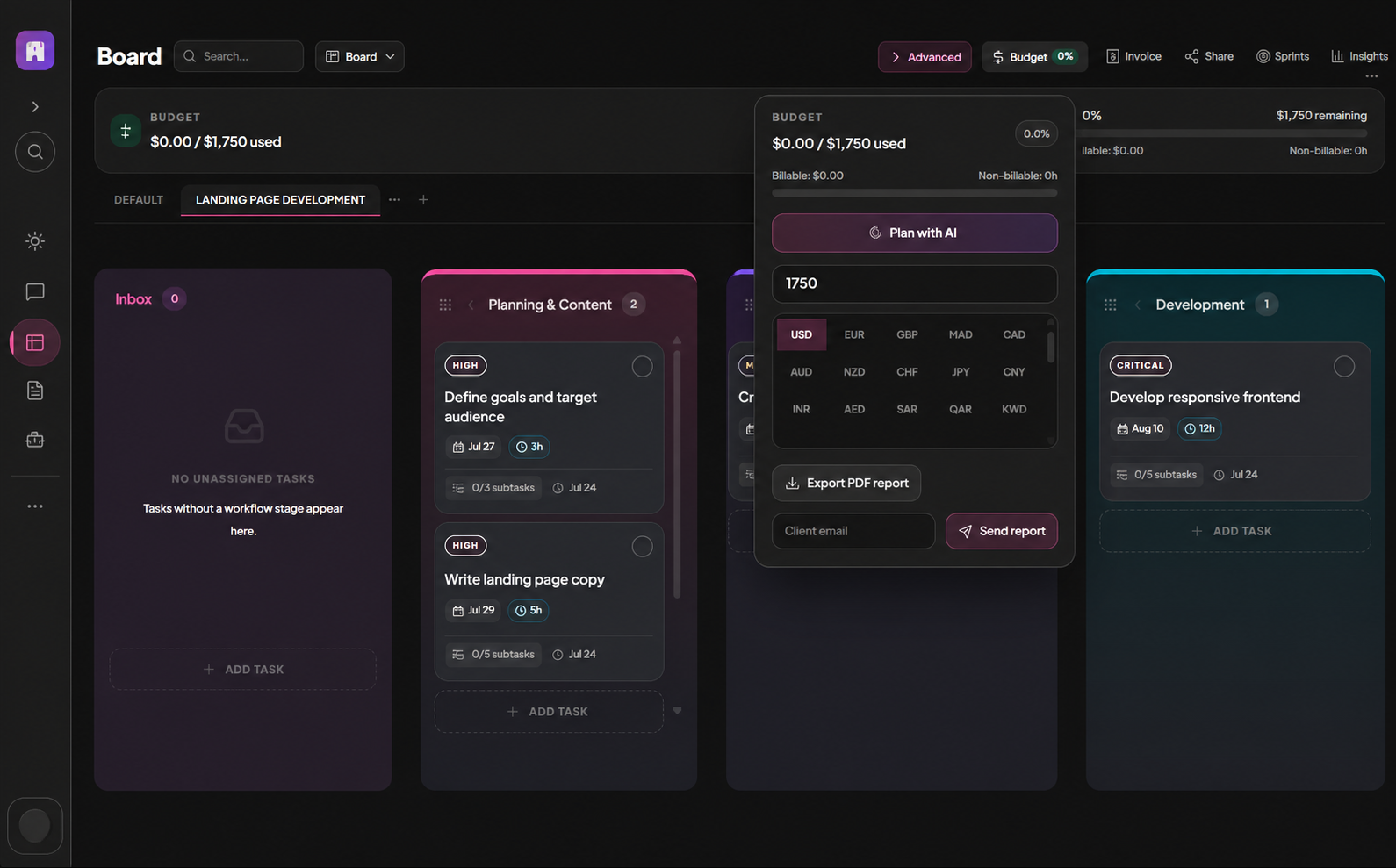
The project board shows budget consumption as tracked work accumulates. Compare the remaining budget with the tasks left to deliver. If the numbers are drifting, review the scope and next steps before the invoice becomes a surprise.
The budget is a decision aid. A rising percentage does not explain whether the work was authorized, whether a change request is needed or whether a rate was set incorrectly. Check the source entries and the client agreement.
Prepare and review the invoice
MoodLens invoices can use tracked time and project data. Open the invoice action from the board or invoice area, check the client, dates, currency, line items and amount, and make sure billable hours match the agreed terms. A generated draft still needs a human review.
Once the invoice is correct, send it through the invoice workflow. If you use payment links or reminders, verify those settings separately. Time tracking supplies evidence for billing; it does not decide what the client agreed to pay.
Frequently asked questions
Can I add time without running a timer?
Yes. MoodLens supports manual time entries as well as per-task timers.
Are all tracked hours automatically billable?
No. Review billable status and the client agreement before creating an invoice from tracked work.
Can I keep a personal rate private?
Yes. Personal rate settings are private; owners and admins manage board-level member rates.