A board shows what is moving. A calendar reveals what is due. A timeline exposes sequence. MoodLens offers those perspectives on the same tasks, with Board Pulse available when you need an on-demand read of delivery risks.
The short answer
Keep project tasks on one MoodLens board. Use Board to manage flow, Table to scan details, Calendar for dates and Timeline for sequence. Filter or sort the work, then run Board Pulse when you want an AI digest of stalled tasks, workload and deadline risk. Review the underlying tasks before changing the plan.
A weekly board review
- 1Scan the Board
- 2Check dates in Calendar
- 3Review sequence in Timeline
- 4Filter urgent work
- 5Run Board Pulse
- 6Agree the next moves
Start with one shared board
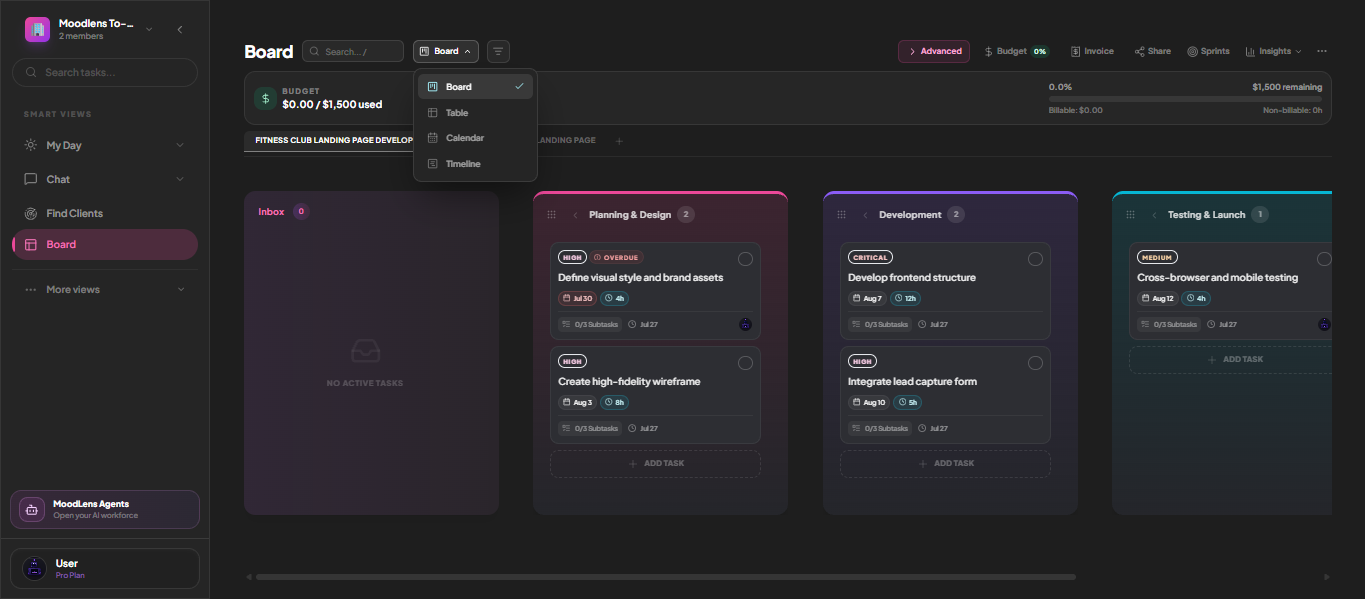
A project board is most useful when the team agrees what its columns mean. Put unsorted requests in the Inbox, move planned work through your chosen columns and keep owners and due dates on the tasks. A column name alone cannot tell you whether a task is blocked.
MoodLens boards support drag and drop, custom columns and work-in-progress limits. The board header also shows budget consumption and links to related project actions. Use those signals in a review, not as a replacement for talking to the people doing the work.
Switch views without making copies
Board, Table, Calendar and Timeline are different views of the same tasks. Board makes flow easy to scan; Table is useful when you need dense detail. Calendar answers “what is due this week?” and Timeline helps reveal the order of delivery.
Changing the view does not move a task or create a second version. The chosen view is remembered for that board, so the team can revisit the perspective that helps its next decision.
- Board: spot crowded or stalled columns.
- Table: compare many tasks quickly.
- Calendar: check due dates.
- Timeline: inspect sequence and handoffs.
Narrow the board to the work that matters now
Filter by priority, search within the board and sort by due date, priority, age or manual order. For a weekly review, first look at critical and high-priority work, then return to the full board so lower-priority items do not disappear from the conversation.
MoodLens syncs board view, search, filters and sorting across devices. That is convenient, but a filtered view may hide work. Check the active filter before declaring the board clear.
Use Board Pulse as a prompt for follow-up
Board Pulse is an on-demand AI digest of the board. It can surface stalled work, overloaded people and deadline risk. Run it before the project check-in, then open the flagged tasks to see whether the warning reflects current facts.
If a deadline looks unrealistic, discuss the dependency, revise ownership or scope and update the task. The digest helps you notice a problem; the team still makes and records the decision.
Frequently asked questions
Do Board and Calendar show different task copies?
No. Board, Table, Calendar and Timeline display the same project tasks in different ways.
Does Board Pulse send scheduled reports?
The board feature describes Board Pulse as an on-demand digest. Run it when you want to inspect current risks.
Can a client see the internal board?
Only if you choose to share progress. The separate client view is read-only and exposes the information selected for sharing.