A client sends a brief, but the team needs named work, dates and owners. Moody can help create and organize tasks; a task can then generate a description and subtasks. This guide shows how to review the draft and turn it into a plan people can actually execute.
The short answer
Start with the client outcome and ask Moody to turn it into tasks in the right project. Review the task list, then open each task to generate a description or subtasks where a title is too broad. Edit the steps, assign owners and set priority and dates before the team begins.
From client brief to actionable tasks
- 1Choose the project
- 2Ask Moody for a draft plan
- 3Review the tasks
- 4Generate useful subtasks
- 5Assign owners and dates
- 6Track progress
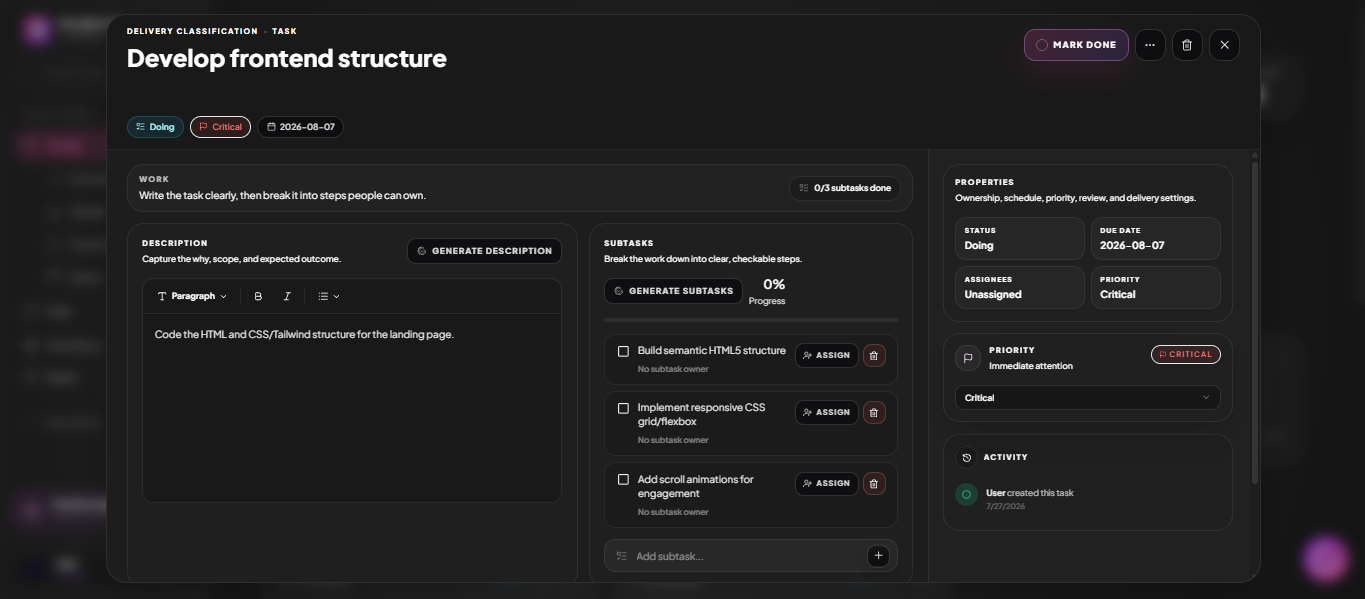
Give Moody an outcome and a project, not just a vague command
Suppose a client asks for a six-page website and a handover session. “Plan the website” leaves too many decisions hidden. Tell Moody which project to use, what must be delivered and which dates are real. Ask it to propose tasks before you treat the plan as final.
Moody can create and update work in the workspace. If a name could refer to two tasks, it asks which one you mean. That clarification matters when a client has several similar projects.
- Name the client project and the deliverables.
- Separate confirmed dates from estimates.
- Ask for a draft you can check against the agreement.
Use AI subtasks to make a broad task executable
A task such as “Launch website” is a milestone, not one person’s next action. Open the task and use Generate Description to draft the scope or Generate Subtasks to split it into steps. Treat the result as a starting point: remove irrelevant steps and add the checks your project requires.
For a launch task, the steps might include client content approval, mobile review, form testing and handover. Those examples are a planning checklist, not actions MoodLens performs automatically.
- Keep each subtask small enough to assign.
- Edit the generated description before others rely on it.
- Assign subtasks to the people doing the work.
Put priority, dates and ownership beside the work
The task panel holds status, due date, assignees and priority beside the description and subtasks. Decide which items are genuinely critical, which date belongs to each handoff and who can mark each step done. The activity trail records changes, so a moved deadline has context.
My Day brings tasks from multiple boards together and labels their source project. That gives each person a daily view without turning the client project into a separate personal to-do list.
Review the plan with the team before work starts
AI can produce a plausible task list that still misses a dependency or assumes a deliverable the client did not buy. Compare the plan with the agreed scope. Check whether design approval precedes development, whether the right person owns the handover and whether dates leave room for client feedback.
Once the plan is sound, use the board to move tasks through delivery. If you need a clearer view of deadlines or bottlenecks, switch the same work into Calendar, Timeline or Table rather than copying tasks elsewhere.
Frequently asked questions
Does Moody create tasks or only suggest them?
Moody can perform task and board operations in the workspace. Review its proposed work and clarify ambiguous project or task names before acting.
Can AI subtasks be changed?
Yes. Generated descriptions and subtasks are editable. Adjust the scope, order and owners to match the real project.
Where can I see all my work for today?
My Day collects tasks from your boards and keeps each task labelled with its source project.