Projects·Boards

Kanban boards that know what the project is worth

Drag-and-drop Kanban boards with custom columns, WIP limits and sprint support — connected to the budget, the client view and the invoice.

Free forever plan. No credit card.

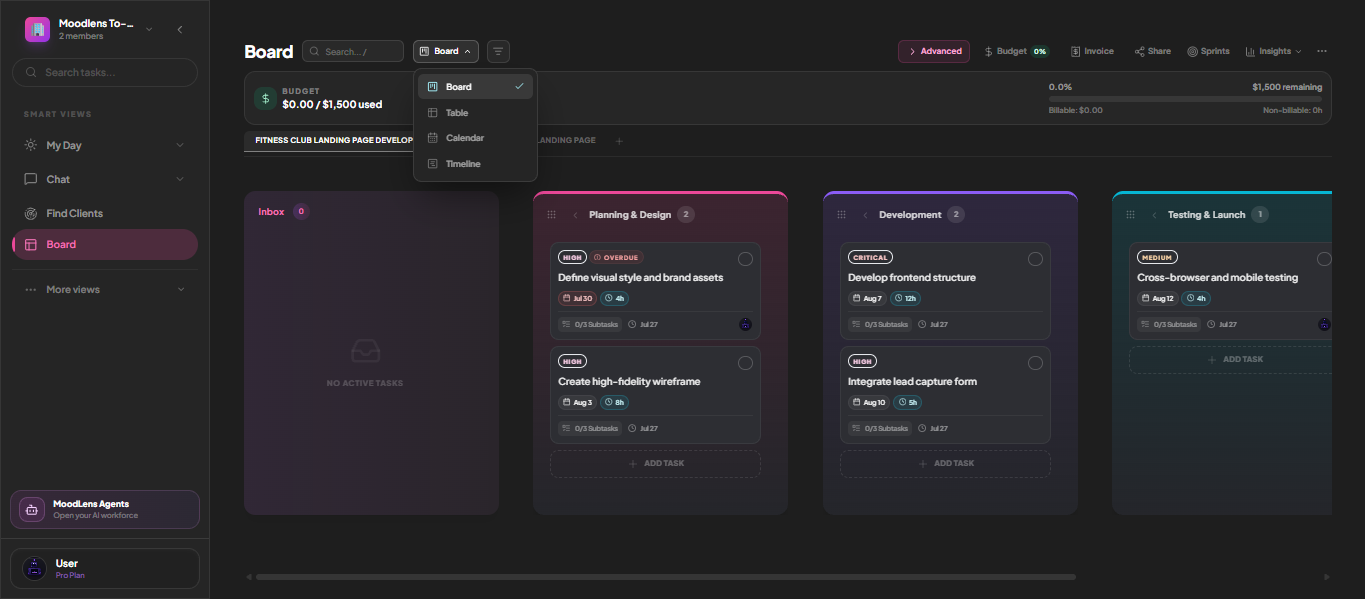
Plate 00 · BoardsBudget, sprints, sharing, invoicing and insights all live in the board header — the commercial side of a project is never a separate tool.
A MoodLens Kanban board with colour-coded columns, budget bar and invoice controls
01

The budget sits in the header, not in another app

Every board shows what it has consumed and what is left before you scroll: percentage used, value remaining, and billable against non-billable hours. Invoice, Share, Sprints and Insights are one click from the same bar.

Detail

  • Budget used and remaining, live
  • Billable versus non-billable hours split
  • Generate an invoice from the board header
  • Share a client view without leaving the board
  • Colour-coded columns with task counts
  • An Inbox column for anything unsorted
02

Four views of the same work, switched in one click

Board, Table, Calendar and Timeline are views, not copies. Switching never moves a task or changes its data — you are looking at the same project from a different angle.

See it below
Plate 01 · Continues 02Board, Table, Calendar, Timeline — the same tasks, four ways to read them.
The MoodLens board view switcher offering Board, Table, Calendar and Timeline

What to look for

  • Board for flow, Table for density
  • Calendar for deadlines, Timeline for sequence
  • No duplicate data between views
  • The view you chose is remembered per board
03

Filters and sorting that follow you between devices

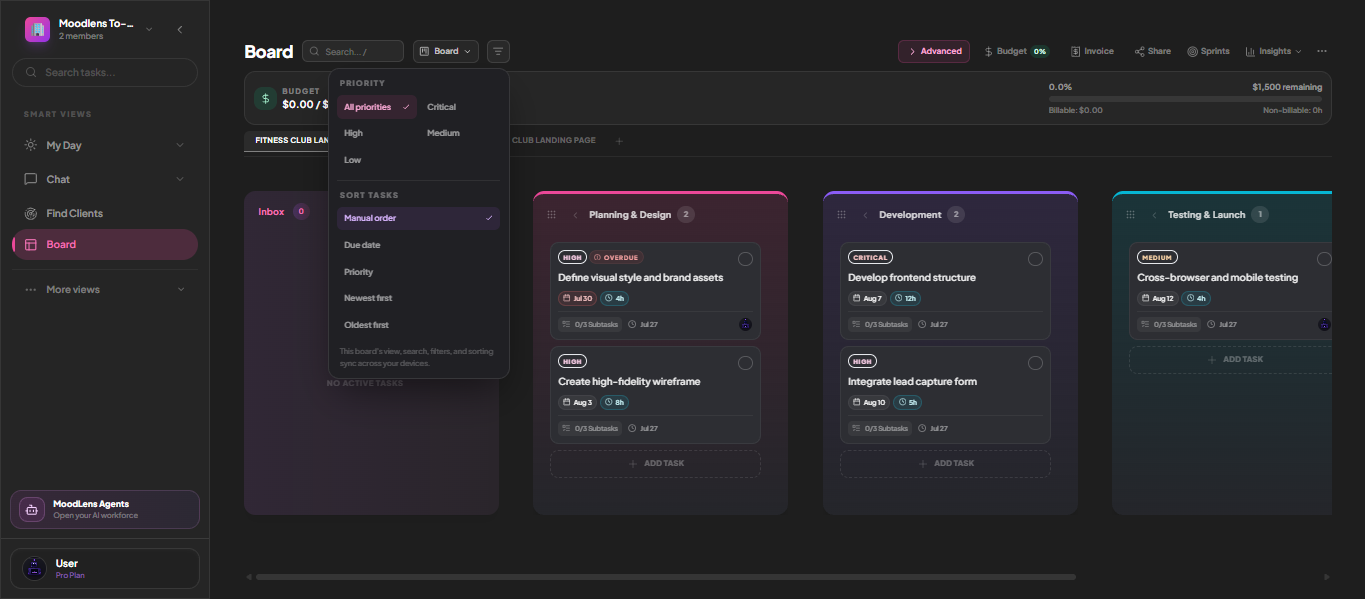
Narrow the board to a single priority and order it by due date, priority, newest or your own manual arrangement. The board explicitly syncs its view, search, filters and sorting across your devices, so the project opens the way you left it.

See it below
Plate 02 · Continues 03Filter by priority, choose a sort order, and it follows you to your next device.
Priority filtering and sort options on a MoodLens board

What to look for

  • Filter by Critical, High, Medium or Low
  • Sort by manual order, due date, priority or age
  • Search within the board
  • View, search, filters and sorting sync across devices
04

Board Pulse tells you what needs attention

An AI digest that reads the board and reports the risks: stalled tasks, overloaded people, deadlines that no longer look realistic — without you assembling a status report to find out.

Detail

  • Stalled and blocked work surfaced
  • Workload and deadline risk
  • Generated on demand, not scheduled spam

Also asked

Boards, answered

Q1
Can clients see my board?Only if you share it. The client portal gives a separate, read-only view with just the progress you choose to expose, while internal columns and comments stay private.
Q2
Is there a limit on boards?Board limits depend on your plan. The Free plan includes boards for real projects, and paid plans raise the workspace and member limits.

Run the whole client lifecycle in one workspace.

Boards is one part of it. Plan the work, keep clients informed, track the budget and get paid — without another subscription.

Start free

Free to start. No credit card required.